
Two-Factor Authentication adds an essential layer of security to protect your account by requiring two forms of identification: your password and a unique security code generated via your mobile phone.
I. Preparatory Steps (Before You Begin)
To complete the setup successfully, please ensure you have the following:
- Mobile Phone: A smartphone that is always with you.
- Authenticator App: Download the Google Authenticator app from the Google Play Store or Apple App Store.
- Access Credentials: Your current WordPress username and password.
II. First-Time Setup
- Initiate Activation: Once you log in to your WordPress dashboard, the 2FA setup screen will appear immediately to begin the activation process.
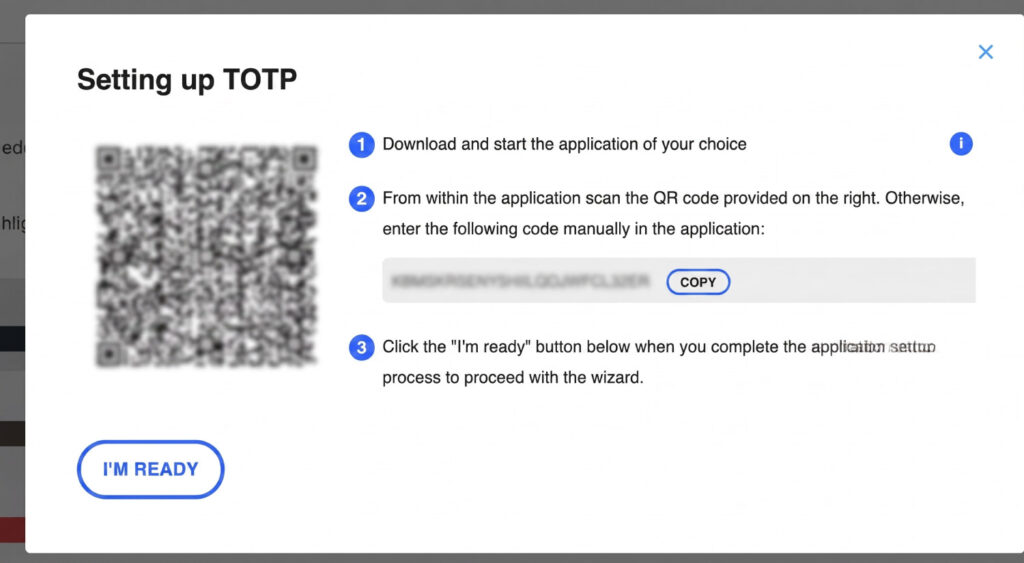
- Link the Authenticator App: Open the Google Authenticator app on your phone and tap the (+) icon. Select “Scan a QR code“ and point your camera at the code displayed on your screen.
III. Verification and Saving Backup Codes
- Verify: Enter the 6-digit code currently displayed in the app into the “Authentication Code” field on your WordPress screen, then click “Verify and Save.”
Critical Step: Save your “Backup Codes” in a secure location. These codes allow you to regain access to your account if you ever lose your phone.
IV. Standard Login Procedure
- Log in as usual using your username and password.
- Open the Google Authenticator app and locate your current 6-digit code.
- Enter that code into the “Authentication Code” field and click “Log In.”
Share this:






